Showing posts with label Articles | Computer Tips and Tricks. Show all posts

Tuesday, 14 January 2014

Computer Tools, Tips and Tricks


Friday, 3 January 2014

Goodbye, Skype: 4 Alternative VOIP Services You Can Record Calls With

Goodbye, Skype: 4 Alternative VOIP Services You Can Record Calls With

Goodbye, Skype: 4 Alternative VOIP Services You Can Record Calls With
New changes to Skype and the support of third party apps have left many users frustrated, particularly where call recording is concerned. With suggestions that the service isn’t as secure as once thought, could now be the time to start looking for an alternative VoIP call recording service?

Quit Skype? Are You Mad?!

Had you told me 12 months ago that Microsoft was going to disable the Skype desktop API, thus rendering many third-party call recorders useless, I’d have suspected you (or they) were mad. Although a temporary delay has been announced, the writing is clearly on the wall.
Like many people, I use Skype extensively, both as a telephony system (I work from home, and my Office 365 subscription gives me free monthly call credit) and for podcasting with two online colleagues. The best solution for podcasting in this way (and for bringing in someone over the phone) is a call recording app – I use MP3 SkypeCallRecorder.
muo voiprecording mp3skyperecorder   Goodbye, Skype: 4 Alternative VOIP Services You Can Record Calls With

To find that the technology giant was going to pull its desktop API was just another piece of the crazy world in which Microsoft has decided that desktop computing is obsolete. We basically have to find another way – and given the service’s NSA links, for this user at least the disconnection from Skype isn’t going to be as hard as it might once have been. A previous Skype update left MP3 SkypeCallRecorder unusable for several days – not ideal!
It wasn’t all that long ago that these methods for recording Skype calls would all work. Now with Microsoft set to make big changes to the software, many of them won’t produce results with future versions of Skype.
The following suggestions for Skype alternatives with built-in call recording support are intended for Windows users (although cross-platform versions may be available). Note that you should only record calls if it is legal in your area, and with the agreement of the person you’re speaking with.

The Obvious Choice: Switch To Google

If you want to replace Skype with software that also supports or has built in call recording, probably the first place to check is Google. Voice and Hangouts are both useful here, with built-in call recording in Google Voice (enabled via Settings > Calls > Call options).
muo voiprecording youtubemp4   Goodbye, Skype: 4 Alternative VOIP Services You Can Record Calls With

As for Hangouts, if you’re planning to record material you can do so by downloading the MP4 of the completed meeting from your YouTube account and converting this to MP3 using a dedicated tool or even VLC Player’s built-in file conversion tools(Media > Convert > Network > Set preferences).

Jitsi

Growing in popularity as a cross-platform, pan-network chat tool, Jitsi (a 41 MB download) has the added bonus of being able to record calls.
muo voiprecording jitsi   Goodbye, Skype: 4 Alternative VOIP Services You Can Record Calls With

This alone makes it worth a look, but best of all is the fact that you can use your existing Facebook, Google Talk, MSN/Windows Live Messenger, Yahoo!, AIM or even ICQ account with the service for text chat, saving a lot of time migrating contacts to yet another new chat service.

ooVoo

Perhaps the most flexible alternative to Skype when it comes to recording calls, ooVoo (a 2.4 MB download) supports voice and video call recording and will upload to either an ooVoo server or YouTube.
muo voiprecording oovoo   Goodbye, Skype: 4 Alternative VOIP Services You Can Record Calls With

Like Skype, ooVoo offers free calls within the network for voice and video, while calls to landlines and mobiles will require ooVoo credit. Meanwhile, the service also supports online collaboration with screen sharing for up to 12 recorded video chat users – however this is ad-supported. An ad-free premium option for enterprise users is also available.
A free signup is required, and if you’re concerned about the lack of contacts on this network, don’t worry – you can connect your Facebook account!
Note that if you choose ooVoo, it will attempt to install the Ask.com toolbar and set up a Humnut account, so be vigilant when clicking through the installer!

Or, You Could Stick With Old Versions Of Skype

One alternative you could use is to stick with an old version of Skype, refusing all updates. Opening Tools > Options Advanced > Automatic Updates and clickingTurn off automatic updates is a good way of doing this – but as the window observes, Windows Update may install updates for the application.
Accepting future updates will at some point remove the ability of your current Skype recording app to record and save calls to your computer.
The problem with refusing updates, of course, is that if you’re not the only user of your computer, someone else may permit them. You may prefer to addwww.oldversion.com to your favourites, where you can find every version of Skype released – don’t attempt to use any version older than 2.5, however.
For call recorders, you could stick with your existing setup if you’re refusing to install updates, but a good workaround is to find a solution that doesn’t rely on the API.Audacity, for instance, can be used to record calls from Skype, as can Total Recorder.
The fate of your Skype call recording is in your hands.
Image Credit: Marco Raaphorst
Article by: 

Does Your WiFi Speed Drop? Here Is Why & How To Fix It!

Does Your WiFi Speed Drop? Here Is Why & How To Fix It!

Does Your WiFi Speed Drop? Here Is Why & How To Fix It!
One moment you’re absolutely dominating in your online game while downloading some movies (legally, of course), and the next moment you can barely load a simple web page. Or maybe, you can’t do that ever. So did your brand new Gigabit Internet connection go to waste? Probably not — if you’re running a home network entirely on WiFi, it’s important to optimize it as much as possible.

Is It Your Internet Connection?

Before messing around with your WiFi, you should attach a computer with Gigabit Ethernet directly to your router or preferably your modem to test your Internet connection. If you can’t get a decent connection with this setup, you have other problems on your hand, which require your ISP’s attention. I only suggest a Gigabit Ethernet connection, so you can easily rule out the Ethernet as a bottleneck.

Update Your Firmware

Before going farther into this article, make sure you’re using the latest firmware of your modem and router. This is important as any updates can come with fixes to software problems that you would try to fix in other ways (and probably fail). Do check for updates regularly, or have your router do that for you if it can.

WiFi Feng Shui

fengshui1b   Does Your WiFi Speed Drop? Here Is Why & How To Fix It!
High up on your list should be to follow Ryan’s WiFi Feng Shui article — it’ll help you make sure that your router is located at an ideal location along with a few other tips for maximum coverage within your house. When signal strength is at its maximum, your devices should be able to run at their fullest speeds at top reliability.

Switch WiFi Channel

inssider   Does Your WiFi Speed Drop? Here Is Why & How To Fix It!
Next, make sure your router is using a WiFi channel that is unoccupied by nearby routers from neighbors. You can use applications which scan for networks and show you on which channels they’re running on. James has previously demonstrated how to pick a unique wireless channel.  By choosing an unoccupied channel, you’ll face less interference and therefore better performance.

Routers usually default at either channel 6 or “automatic”, which will do this for you. However, if you’re in the same situation as I am, with up to 10 WiFi networks at a time, finding a channel can be difficult. Try to pick a channel with the least number of networks on it, preferably networks that have very low signal strength at your location, or, again, have it set to do this automatically. At least then you won’t have to check back every now and then in case neighbors do some channel shuffling of their own.

Use More Universally-Compatible Settings

wifi settings   Does Your WiFi Speed Drop? Here Is Why & How To Fix It!
If you’re concerned about your router using settings that might not maximize compatibility with all your wireless devices, it’s best to use more common frequencies and technologies. All WiFi devices today support at least 2.4 GHz 802.11g, which goes up to 54 Mbps. If you set your router’s settings to these same values, you should be using the most compatible settings possible. Otherwise, if you choose to run a 5 GHz WiFi network up to 300+ Mbps, then only dual-band WiFi devices can even connect, and those running 802.11n or 802.11ac will get preference by the router — leaving subpar performance for other devices.

Upgrade The Antenna

coverage   Does Your WiFi Speed Drop? Here Is Why & How To Fix It!
If your router has a removable antenna, you can upgrade it to a larger antenna that will produce a larger dB, or signal strength. This can also help a lot if it’s not physically possible to follow all of the steps in Ryan’s previously mentioned WiFi Feng Shui article.

Find Out What Is Using Up Your Bandwidth

stolen bandwidth9   Does Your WiFi Speed Drop? Here Is Why & How To Fix It!
If your WiFi speed drops periodically or during specific times of the day, it’s possible that software or other devices on your network eat up your bandwidth. You can refer to Ryan’s article to find out who’s eating your bandwidth. Of course you might also find that your WiFi is being leeched.

MAC Address Filtering

Lastly, if you find that neighbors are messing with your network, you can prevent them from getting to your Internet connection. Make sure you have a good WPA2 encryption enabled (WEP is unusable as James demonstrated). You can also enable MAC address filtering, where you maintain a whitelist of the MAC addresses of your WiFi devices. Of course, MAC address filtering is time consuming and therefore not ideal if you have guests visiting regularly.

Conclusion

It’s not always easy to get a good WiFi setup going, but it’s well worth the effort to maintain sufficient signal strength and compatible settings with up-to-date firmware. If after all this you still have issues, it might be a good idea to look at the router and devices you have and see if they should be upgraded. For example, you might have just gotten yourself a new device with 802.11ac wireless, but your router still only supports 802.11g. This could definitely limit your wireless performance.
For general home network performance, check out James’s article which also includes wired networking.
How have you fixed your WiFi problems? What caused it? Let us know in the comments!

Mount and Use .IMG Files With These Free Tools

Mount and Use .IMG Files With These Free Tools

Mount and Use .IMG Files With These Free Tools

Don’t let the terminology mislead or turn you off! .IMG files are useful for everyone who uses software or game CDs / DVDs on a regular basis. Let’s take a look at what an .IMG file is, what you can do with .IMG files, and some tools to help you make the most of them.

What is an .IMG File?

You may have guessed that an .IMG file type is an image file of some sort. However it’s not about photographs or pictures. No, the kind of image we are talking about is a copy of a disk, whether it be a CD, DVD, or hard drive.
Have you ever seen in spy movies where the intrepid spy takes a photograph of a file, so they have a complete copy? Think of it like that, but it’s a photograph of all the data on a disk – a complete copy, bit for bit.
You might also have heard of different disk image file types like .ISO, .CCD, or .BIN/.CUE. Same concept, different file types. If you’re interested in working with .ISO files, take a look at Chris Hoffman’s article, “What Are ISO Files & How You Can Create, Use & Burn Them For Free In Windows 7“.

What Can You Do with an .IMG File?

Here are a few things you could use an .IMG file for:
  • Backup of your hard drive, so you can recover files if the hard drive fails.
  • Copy of a program installation disk that you made, in case you lose the original.
  • Copies of your favourite game’s CDs to mount them as though they were hard drives, to speed up gameplay.
Although the first option is the most practical application, you’ll probably find that mounting images of game disks will be the thing for which you use it most. A mounted CD/DVD image file of a game can run up to 200 times faster than a physical CD/DVD. Also, you don’t have to keep popping disks in and out of your CD/DVD drive. This leaves your original disks with less wear and tear, in case you want to resell them.
CD and Laptop Drive   Mount and Use .IMG Files With These Free Tools

What Does it Mean to Mount an .IMG File?

Mounting an image file means to create a virtual CD/DVD drive on your computer and point it to use your .IMG file as though it were an actual disk. This mounting concept comes from the days when you had to mount a floppy drive or a hard drive before you could use it with your computer. Same principle: you’d tell the computer that this drive is the one you want to use, and the computer would use it. These days, most operating systems automatically mount the hard drive for you.

How Do I Mount an .IMG File?

The easiest way is to use a program that will graphically walk you through a wizard and mount the .IMG file for you. There are many free programs out there for this task, and many of them will mount other disk image file types, like the .CCD or .BIN/.CUE file types mentioned before. Once an .IMG file is mounted, it will remain accessible to the operating system as though it were a disk, until you unmount the file when you are done. This makes using .IMG files a very convenient way of accessing and using large amounts of data, with all the hassles of dealing with disks.
Let’s take a look at three different applications to help with this task. All of these programs are for use with a Windows computer and all of them are free.

OSFMount

Developed and distributed by Passmark Software, OSFMount is a very handy piece of software to work with .IMG files. The software also supports the mounting of .ISO (raw CD image), .NRG (Nero Burning ROM image), .SDI (system deployment image), .VMDK (VMWare image), .AFM (Advanced Forensics Images with meta data), and .AFF (advanced forensics format images) formats as well as a few others. By the description of the different formats, you can get a rough idea that this software was developed with forensics use in mind. Using this tool does require Administrator rights on your computer, and as they say, the more RAM the better.
OSFMount screenshot   Mount and Use .IMG Files With These Free Tools

If your computer has a LOT of RAM, you can also mount your image as RAM disk. The benefit is that it will run much faster than if it is running from your hard disk drive. Something to be cautious about when mounting your .IMG file in RAM, is that once the computer is shut down, whatever was in RAM is lost, meaning your .IMG file is lost from RAM. Not a problem if you have a copy of the .IMG file elsewhere. For those that work in computer forensics, this is actually a security feature, so that .IMG contents are harder to steal.
OSFMount allows you to mount several different images, in several different ways, all at the same time. It is definitely very powerful software and may take a little bit of time to work out all the nuances, yet, it is simple enough that mounting a single .IMG file can be done immediately upon installing OSFMount. If you’re interested in recovering files from a dead hard drive, this is the software for you.

MagicDisc

A fairly seasoned veteran, yet immensely popular image file application, MagicDisc is very simple to use. We have previously reviewed MagicDisc as a Free Virtual Drive Tool to Mount Disks & ISO Images. Currently, MagicDisc supports 16 different image types, with .IMG, .BIN, .NRG, and .VCD being the most widely used ones.
Once installed, MagicDisc resides in the system tray, in the lower right-hand corner of your Windows desktop. By simply right-clicking on the icon, selecting Virtual CD/DVD-ROM, then whatever empty drive it shows you is available, then click onMount. At that point, you navigate to the .IMG file you want and double click on it. Done. The image is mounted as though it were a CD/DVD disk in a CD/DVD drive.
magicdisc menu   Mount and Use .IMG Files With These Free Tools

For this example, MagicDisc assigned drive E: and the file used was Soldier of Fortune.img. If the drive letter conflicts with a drive letter that is currently in use, you can assign it a new drive letter.
magicdisk SOF mounted   Mount and Use .IMG Files With These Free Tools


If you would like to virtually load up to 15 discs of a game, so you can play faster, MagicDisc is an excellent choice for you. Less time spent on swapping disks means more time fragging n00bs.

Gizmo Director/Gizmo Drive

Tackling categorizing Gizmo Director is like trying to tackle the CFL legend Gizmo Williams. It’s very tough to do indeed, as both Gizmos can do an awful lot of different things! Gizmo Director is a utility software that helps with mounting images, automating PC tasks by helping you create scripts, database functions, colorizing text editor and hash value calculator. If all that you got out of that was this Gizmo can help you mount image files, that’s alright, that’s all you really need to get out of it at this time.
Once you’ve downloaded and started to install Gizmo Director, you’ll be asked what features you would like to install. You must install Gizmo Central as that is the core of the program, and for today’s purposes only install Gizmo Drive – uncheck the other options if they mean nothing to you.
gizmo director selections   Mount and Use .IMG Files With These Free Tools

Before you can use Gizmo Drive, you will also need to restart your computer, so that the Gizmo Drive driver can finish being installed. After the computer is restarted, mounting the image file is pretty simple and intuitive.
In the image below, you can see where it says Mount Image. Simply click on that and follow the prompts to mount your.IMG file. Once you’ve completed the steps, you’ll see in the Virtual Drives window that the image was successfully mounted and ready to use.
gizmo drive screenshot 640x285   Mount and Use .IMG Files With These Free Tools

With the variety of tools that Gizmo Director comes with, as well as the flexibility of the Gizmo Drive feature, this tool is a good one for technically minded people such as system administrators or support technicians.

The Takeaway

Depending on your needs and level of comfort with a computer, several tools can help you make use of .IMG files. We’ve looked at just three of them today, however there are many more. Just take a look through the archive of articles on MakeUseOf and you’ll discover articles on Mounting Your Image Files or Tools To Create And Mount ISO Files, in case you don’t have a DVD drive. Those articles will take you further into the world of disc images and what wonderful things you can do with them.
What is your favourite use for image files? Any utility better than others, for you? Let us know about it in the comments. Who knows? It might spark another article or we may be able to answer a nagging question you’ve had. We’re all in this together.
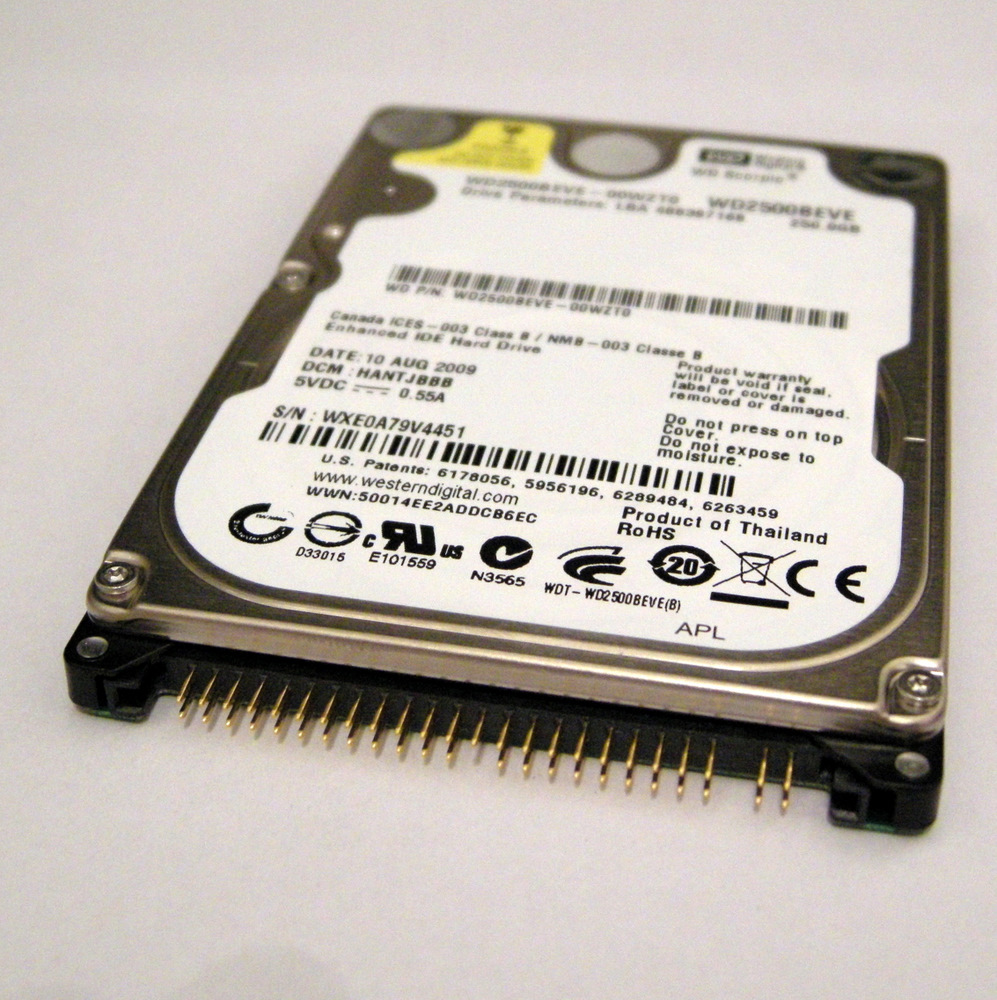
Image CreditsCD & Laptop Drive via Shutterstock, DVD Two Kinds via WikiCommons, Hard Disk Drive by mattk, via Flickr, Colourful Background by Roberto Verzo, via Flickr.
Article by:  

6 Things You Can Prepare For Internet Downtime

6 Things You Can Prepare For Internet Downtime
The Internet’s down, everybody panic! If you’ve ever said that, out loud, maybe it’s time to start thinking about how to prepare for outages.
Web-based services are awesome, but largely impossible to use if your Internet connection goes down. You should plan to be ready next time.
With a little preparation, even people who use web apps for just about everything can be ready to be reasonably productive during outages. Here are a few things to think about now so you’ll be ready later.

Make Cloud Files Available Offline

The cloud means all our documents are accessible anywhere with an Internet connection, but what if there isn’t one?
Well, part of the appeal of services like Dropbox and Skydrive is that they sync documents directly to your computer (although Microsoft slightly changed things for Windows 8.1). So if you use these services, and have the proper client installed, your files should be perfectly usable offline. Make changes and they’ll sync the next time you’re connected.
There’s just one potential complication: conflicting files. Shared files you edit while offline may be edited by someone else. If this happens you’ll see a conflicted version of the file when you reconnect to the web. It’s not usually a huge deal, but keep it in mind if you’re collaborating on something.

Google Drive is a little trickier. Files you simply upload to the service are perfectly accessible offline, assuming you’re using the desktop app. Things get tricky with any file formatted for editing by Google Drive’s online office suite. There are instructions for setting up offline access, but it’s a touch limited. You’ll be able to edit documents and presentations; spreadsheets are view only.
Still, it’s better than nothing, so make sure you set this up if you’re a die-hard Google Drive user.

Sync Email To Your Desktop

If you use a desktop email client, good news: your emails are almost certainly accessible offline. You can read your emails and their status will be synced later, assuming you’re using IMAP instead of POP (and if you own multiple devices, you should be).
But what about those of us who stick to the webmail services like Gmail? If you’re a Gmail user, you’re in luck: Gmail Offline is a Chrome app that lets you use Gmail offline.
image61   6 Things You Can Prepare For Internet Downtime
The interface is a little different than the standard version, sure, but it syncs whenever Chrome is open without you needing to do anything (and Gmail’s keyboard shortcuts work exactly as you’re used to).
Yahoo Mail and Microsoft’s Outlook.com/Hotmail service don’t offer an equivalent feature, so make sure you’ve got an email client set up for those services.

Make Your Calendar Work Offline

You need to know where to go when, whether you’re offline or not. That’s why it’s important you ensure your calendar doesn’t just live on the cloud. Google Calendar is by far the most popular online calendar service, and CalDAV support means it can sync with a number of programs (just not Outlook). Mac users, for example, can easily set up Google Calendar to sync with iCal/Calendar.
If you’d rather stick to your browser, however, you can – if your browser is Chrome.Just follow Google’s instructions for offline calendar use and you’ll be set up in no time.

Download Reading Material And Research

Research is a big part of most modern jobs, and it almost entirely happens online. That doesn’t mean you can’t prepare for an outage: it’s just a matter of preparation.
Are you researching a particular topic? Make sure the information you need is on your computer by clipping it to a service like Evernote. Their web clipper is theultimate content saving tool, and incredibly easy to use:
2 Web Clipper Interface   6 Things You Can Prepare For Internet Downtime

Install that, along with the desktop version of the app, and you’ll be able to access everything relevant to your research online or off.
If you’re an RSS user, get a desktop client that supports offline reading. NextGen Reader is a Windows 8 app that syncs with the Feedly Cloud, and with it you can read your RSS feeds offline.
NextGen Reader Feeds   6 Things You Can Prepare For Internet Downtime

Mac users should look into Readkit, which is the ultimate offline tool for RSS and read later services. The application downloads your feeds to your computer, so you’ll be reading the web offline in no time.
Also make sure to download any and all PDFs and documents you need to access regularly. Sure, many are easy enough to find online if you need them, but you never know when you might be stuck offline. With a little preparation you can have everything you need to research on your computer, just in case.

Get Offline Maps

You need to know where you’re going, so you need to take your maps offline. Android users are in luck: Many apps download maps to your phone or tablet for offline use. The official Google Maps app also includes such an option, so be sure to check that out.
On the desktop you could try GMapCatcher. Originally built to download from Google Maps, but it doesn’t work with that service anymore. Don’t worry, though: GMapCatcher can download from Bing and Yahoo maps, as well as OpenStreetMap.

Tune Up Your Computer

Of course, if access to your documents, calendar, email and maps isn’t enough, you could always use the time to tune up your computer, run a virus scan, defragment your drive, or use the disconnected time to clean up your computer.
If you’re not sure where to start, download our Windows speed up guide and read through it. Make sure you have the software installed now so you can run it during offline time. You’re not getting work done now, sure, but a faster computer means you’ll save a lot of time later.

…Or Just Go For A Walk

go for a walk   6 Things You Can Prepare For Internet Downtime

Of course, you could use the offline time as an excuse to get away from your computer altogether. Take a walk, enjoy a local part and otherwise disconnect for a little while. Your work will be waiting for you later, so why not use the down time to collect your thoughts?
Know of another way to plan for sudden offline moments? Let me know in the comments, okay?
Image Credits: defective wire Via Shutterstock
Article by: Justin Pot