Showing posts with label Articles | Networking. Show all posts
Showing posts with label Articles | Networking. Show all posts
Monday, 13 January 2014


Friday, 3 January 2014
Does Your WiFi Speed Drop? Here Is Why & How To Fix It!
Does Your WiFi Speed Drop? Here Is Why & How To Fix It!

One moment you’re absolutely dominating in your online game while downloading some movies (legally, of course), and the next moment you can barely load a simple web page. Or maybe, you can’t do that ever. So did your brand new Gigabit Internet connection go to waste? Probably not — if you’re running a home network entirely on WiFi, it’s important to optimize it as much as possible.
Is It Your Internet Connection?
Before messing around with your WiFi, you should attach a computer with Gigabit Ethernet directly to your router or preferably your modem to test your Internet connection. If you can’t get a decent connection with this setup, you have other problems on your hand, which require your ISP’s attention. I only suggest a Gigabit Ethernet connection, so you can easily rule out the Ethernet as a bottleneck.
Update Your Firmware
Before going farther into this article, make sure you’re using the latest firmware of your modem and router. This is important as any updates can come with fixes to software problems that you would try to fix in other ways (and probably fail). Do check for updates regularly, or have your router do that for you if it can.
WiFi Feng Shui

High up on your list should be to follow Ryan’s WiFi Feng Shui article — it’ll help you make sure that your router is located at an ideal location along with a few other tips for maximum coverage within your house. When signal strength is at its maximum, your devices should be able to run at their fullest speeds at top reliability.
Switch WiFi Channel

Next, make sure your router is using a WiFi channel that is unoccupied by nearby routers from neighbors. You can use applications which scan for networks and show you on which channels they’re running on. James has previously demonstrated how to pick a unique wireless channel. By choosing an unoccupied channel, you’ll face less interference and therefore better performance.
Routers usually default at either channel 6 or “automatic”, which will do this for you. However, if you’re in the same situation as I am, with up to 10 WiFi networks at a time, finding a channel can be difficult. Try to pick a channel with the least number of networks on it, preferably networks that have very low signal strength at your location, or, again, have it set to do this automatically. At least then you won’t have to check back every now and then in case neighbors do some channel shuffling of their own.
Use More Universally-Compatible Settings

If you’re concerned about your router using settings that might not maximize compatibility with all your wireless devices, it’s best to use more common frequencies and technologies. All WiFi devices today support at least 2.4 GHz 802.11g, which goes up to 54 Mbps. If you set your router’s settings to these same values, you should be using the most compatible settings possible. Otherwise, if you choose to run a 5 GHz WiFi network up to 300+ Mbps, then only dual-band WiFi devices can even connect, and those running 802.11n or 802.11ac will get preference by the router — leaving subpar performance for other devices.
Upgrade The Antenna

If your router has a removable antenna, you can upgrade it to a larger antenna that will produce a larger dB, or signal strength. This can also help a lot if it’s not physically possible to follow all of the steps in Ryan’s previously mentioned WiFi Feng Shui article.
Find Out What Is Using Up Your Bandwidth

If your WiFi speed drops periodically or during specific times of the day, it’s possible that software or other devices on your network eat up your bandwidth. You can refer to Ryan’s article to find out who’s eating your bandwidth. Of course you might also find that your WiFi is being leeched.
MAC Address Filtering
Lastly, if you find that neighbors are messing with your network, you can prevent them from getting to your Internet connection. Make sure you have a good WPA2 encryption enabled (WEP is unusable as James demonstrated). You can also enable MAC address filtering, where you maintain a whitelist of the MAC addresses of your WiFi devices. Of course, MAC address filtering is time consuming and therefore not ideal if you have guests visiting regularly.
Conclusion
It’s not always easy to get a good WiFi setup going, but it’s well worth the effort to maintain sufficient signal strength and compatible settings with up-to-date firmware. If after all this you still have issues, it might be a good idea to look at the router and devices you have and see if they should be upgraded. For example, you might have just gotten yourself a new device with 802.11ac wireless, but your router still only supports 802.11g. This could definitely limit your wireless performance.
For general home network performance, check out James’s article which also includes wired networking.
How have you fixed your WiFi problems? What caused it? Let us know in the comments!
6 Things You Can Prepare For Internet Downtime

The Internet’s down, everybody panic! If you’ve ever said that, out loud, maybe it’s time to start thinking about how to prepare for outages.
Web-based services are awesome, but largely impossible to use if your Internet connection goes down. You should plan to be ready next time.
With a little preparation, even people who use web apps for just about everything can be ready to be reasonably productive during outages. Here are a few things to think about now so you’ll be ready later.
Make Cloud Files Available Offline
The cloud means all our documents are accessible anywhere with an Internet connection, but what if there isn’t one?
Well, part of the appeal of services like Dropbox and Skydrive is that they sync documents directly to your computer (although Microsoft slightly changed things for Windows 8.1). So if you use these services, and have the proper client installed, your files should be perfectly usable offline. Make changes and they’ll sync the next time you’re connected.
There’s just one potential complication: conflicting files. Shared files you edit while offline may be edited by someone else. If this happens you’ll see a conflicted version of the file when you reconnect to the web. It’s not usually a huge deal, but keep it in mind if you’re collaborating on something.
Google Drive is a little trickier. Files you simply upload to the service are perfectly accessible offline, assuming you’re using the desktop app. Things get tricky with any file formatted for editing by Google Drive’s online office suite. There are instructions for setting up offline access, but it’s a touch limited. You’ll be able to edit documents and presentations; spreadsheets are view only.
Still, it’s better than nothing, so make sure you set this up if you’re a die-hard Google Drive user.
Sync Email To Your Desktop
If you use a desktop email client, good news: your emails are almost certainly accessible offline. You can read your emails and their status will be synced later, assuming you’re using IMAP instead of POP (and if you own multiple devices, you should be).
But what about those of us who stick to the webmail services like Gmail? If you’re a Gmail user, you’re in luck: Gmail Offline is a Chrome app that lets you use Gmail offline.

The interface is a little different than the standard version, sure, but it syncs whenever Chrome is open without you needing to do anything (and Gmail’s keyboard shortcuts work exactly as you’re used to).
Yahoo Mail and Microsoft’s Outlook.com/Hotmail service don’t offer an equivalent feature, so make sure you’ve got an email client set up for those services.
The interface is a little different than the standard version, sure, but it syncs whenever Chrome is open without you needing to do anything (and Gmail’s keyboard shortcuts work exactly as you’re used to).
Yahoo Mail and Microsoft’s Outlook.com/Hotmail service don’t offer an equivalent feature, so make sure you’ve got an email client set up for those services.
Make Your Calendar Work Offline
You need to know where to go when, whether you’re offline or not. That’s why it’s important you ensure your calendar doesn’t just live on the cloud. Google Calendar is by far the most popular online calendar service, and CalDAV support means it can sync with a number of programs (just not Outlook). Mac users, for example, can easily set up Google Calendar to sync with iCal/Calendar.
If you’d rather stick to your browser, however, you can – if your browser is Chrome.Just follow Google’s instructions for offline calendar use and you’ll be set up in no time.
Download Reading Material And Research
Research is a big part of most modern jobs, and it almost entirely happens online. That doesn’t mean you can’t prepare for an outage: it’s just a matter of preparation.
Are you researching a particular topic? Make sure the information you need is on your computer by clipping it to a service like Evernote. Their web clipper is theultimate content saving tool, and incredibly easy to use:

Install that, along with the desktop version of the app, and you’ll be able to access everything relevant to your research online or off.
If you’re an RSS user, get a desktop client that supports offline reading. NextGen Reader is a Windows 8 app that syncs with the Feedly Cloud, and with it you can read your RSS feeds offline.

Mac users should look into Readkit, which is the ultimate offline tool for RSS and read later services. The application downloads your feeds to your computer, so you’ll be reading the web offline in no time.
Also make sure to download any and all PDFs and documents you need to access regularly. Sure, many are easy enough to find online if you need them, but you never know when you might be stuck offline. With a little preparation you can have everything you need to research on your computer, just in case.
Get Offline Maps
You need to know where you’re going, so you need to take your maps offline. Android users are in luck: Many apps download maps to your phone or tablet for offline use. The official Google Maps app also includes such an option, so be sure to check that out.
On the desktop you could try GMapCatcher. Originally built to download from Google Maps, but it doesn’t work with that service anymore. Don’t worry, though: GMapCatcher can download from Bing and Yahoo maps, as well as OpenStreetMap.
Tune Up Your Computer
Of course, if access to your documents, calendar, email and maps isn’t enough, you could always use the time to tune up your computer, run a virus scan, defragment your drive, or use the disconnected time to clean up your computer.
If you’re not sure where to start, download our Windows speed up guide and read through it. Make sure you have the software installed now so you can run it during offline time. You’re not getting work done now, sure, but a faster computer means you’ll save a lot of time later.
…Or Just Go For A Walk

Of course, you could use the offline time as an excuse to get away from your computer altogether. Take a walk, enjoy a local part and otherwise disconnect for a little while. Your work will be waiting for you later, so why not use the down time to collect your thoughts?
Know of another way to plan for sudden offline moments? Let me know in the comments, okay?
Image Credits: defective wire Via Shutterstock
Article by: Justin Pot
Friday, 6 December 2013
How I cracked my neighbor's WiFi password without breaking a sweat
Readily available tools make cracking easier.

The four-way handshake, in which a wireless device (STA) validates itself to a WiFi access point and vice versa.
Take, for example, the hundreds of millions of WiFi networks in use all over the world. If they're like the ones within range of my office, most of them are protected by the WiFi Protected Access or WiFi Protected Access 2 security protocols. In theory, these protections prevent hackers and other unauthorized people from accessing wireless networks or even viewing traffic sent over them, but only when end users choose strong passwords. I was curious how easy it would be to crack these passcodes using the advanced hardware menus and techniques that have become readily available over the past five years. What I found wasn't encouraging.
First, the good news. WPA and WPA2 use an extremely robust password-storage regimen that significantly slows the speed of automated cracking programs. By using the PBKDF2 key derivation function along with 4,096 iterations of SHA1 cryptographic hashing algorithm, attacks that took minutes to run against the recent LinkedIn and eHarmony password dumps of June would require days or even weeks or months to complete against the WiFi encryption scheme.
What's more, WPA and WPA2 passwords require a minimum of eight characters, eliminating the possibility that users will pick shorter passphrases that could be brute forced in more manageable timeframes. WPA and WPA2 also use a network's SSID as salt, ensuring that hackers can't effectively use precomputed tables to crack the code.
That's not to say wireless password cracks can't be accomplished with ease, as I learned firsthand.
I started this project by setting up two networks with hopelessly insecure passphrases. The first step was capturing what is known as the four-way handshake, which is the cryptographic process a computer uses to validate itself to a wireless access point and vice versa. This handshake takes place behind a cryptographic veil that can't be pierced. But there's nothing stopping a hacker from capturing the packets that are transmitted during the process and then seeing if a given password will complete the transaction. With less than two hours practice, I was able to do just that and crack the dummy passwords "secretpassword" and "tobeornottobe" I had chosen to protect my test networks.
Brother, can you spare a deauth frame?
To capture a valid handshake, a targeted network must be monitored while an authorized device is validating itself to the access point. This requirement may sound like a steep hurdle, since people often stay connected to some wireless networks around the clock. It's easy to get around, however, by transmitting what's known as a deauth frame, which is a series of deauthorization packets an AP sends to client devices prior to it rebooting or shutting down. Devices that encounter a deauth frame will promptly rejoin an affected network.Using the Silica wireless hacking tool sold by penetration-testing software provider Immunity for $2,500 a year, I had no trouble capturing a handshake established between a Netgear WGR617 wireless router and my MacBook Pro. Indeed, using freely available programs like Aircrack-ng to send deauth frames and capture the handshake isn't difficult. The nice thing about Silica is that it allowed me to pull off the hack with a single click of my mouse. In less than 90 seconds I had possession of the handshakes for the two networks in a "pcap" (that's short for packet capture) file. My Mac never showed any sign it had lost connectivity with the access points.
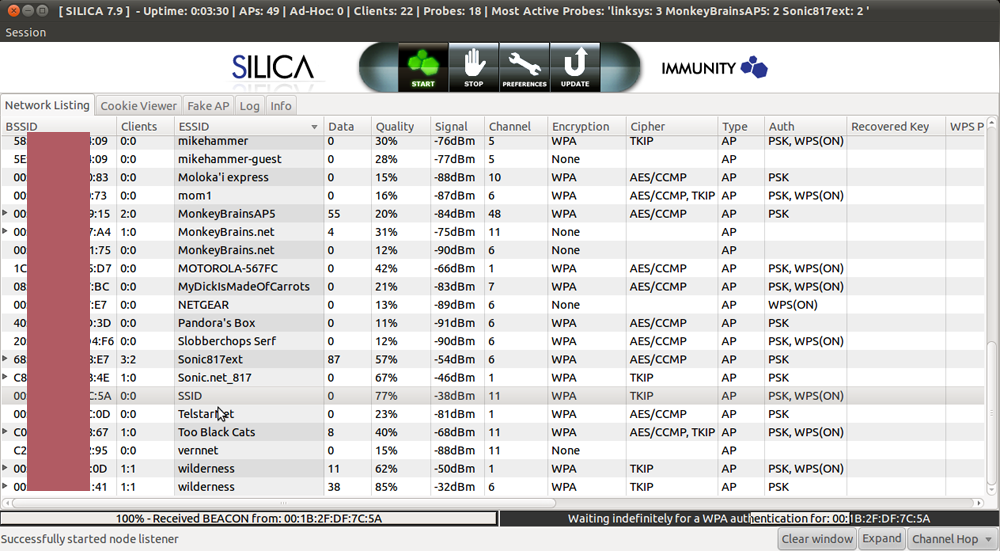
Enlarge / A screenshot showing Immunity Inc.'s Silica wireless penetration-testing tool in action as it sends a deauth frame and then captures the resulting four-way handshake.
It was the neighborly thing to do
Cracking such passcodes I had set up in advance to be guessed was great for demonstration purposes, but it didn't provide much satisfaction. What I really wanted to know was how much luck I'd have cracking a password that was actually being used to secure one of the networks in the vicinity of my office.So I got the permission of one of my office neighbors to crack his WiFi password. To his chagrin, it took CloudCracker just 89 minutes to crack the 10-character, all-numerical password he used, although because the passcode wasn't contained in the entry-level, 604 million-word list, I relied on a premium, 1.2 billion-word dictionary that costs $34 to use.
My fourth hack target presented itself when another one of my neighbors was selling the above-mentioned Netgear router during a recent sidewalk sale. When I plugged it in, I discovered that he had left the eight-character WiFi password intact in the firmware. Remarkably, neither CloudCracker nor 12 hours of heavy-duty crunching by Hashcat were able to crack the passphrase. The secret: a lower-case letter, followed two numbers, followed by five more lower-case letters. There was no discernible pattern to this password. It didn't spell any word either forwards or backwards. I asked the neighbor where he came up with the password. He said it was chosen years ago using an automatic generation feature offered by EarthLink, his ISP at the time. The e-mail address is long gone, the neighbor told me, but the password lives on.
No doubt, this neighbor should have changed his password long ago, but there is a lot to admire about his security hygiene nonetheless. By resisting the temptation to use a human-readable word, he evaded a fair amount of cutting-edge resources devoted to discovering his passcode. Since the code isn't likely to be included in any password cracking word lists, the only way to crack it would be to attempt every eight-character combination of letters and numbers. Such brute-force attacks are possible, but in the best of worlds they require at least six days to exhaust all the possibilities when using Amazon's EC2 cloud computing service. WPA's use of a highly iterated implementation of the PBKDF2 function makes such cracks even harder.
Besides changing the password every six months or so and not using a 10-digit phone number, my neighbors could have taken another important step to improve their WiFi security. WPA allows for passwords with 63 characters in them, making it possible to append four or five randomly selected words—"applesmithtrashcancarradar" for instance—that are easy enough to repeat to guests who want to use your wireless network but are prohibitively hard to crack.
Yes, the gains made by crackers over the past decade mean that passwords are under assault like never before. It's also true that it's trivial for hackers in your vicinity to capture the packets of the wireless access point that routes some of your most closely held secrets. But that doesn't mean you have to be a sitting duck. When done right, it's not hard to pick a passcode that will take weeks, months, or years to crack.
With odds like that, crackers are likely to move onto easier targets, say one that relies on the quickly guessed "secretpassword" or a well-known Shakespearean quote for its security.
Tuesday, 3 December 2013
How to Setup your own Proxy Server for Free [Updated]
Do a Google search like “proxy servers” and you’ll find dozens of PHP proxy scripts on the Internet that will help you create your own proxy servers in minutes for free. The only limitation with PHP based proxies is that they require a web server (to host and run the proxy scripts) and you also need a domain name that will act as an address for your proxy site.
If you don’t have a web domain or haven’t rented any server space, you can still create a personal proxy server for free and that too without requiring any technical knowledge.


Create a Free Proxy Server with Google App Engine
Here’s one such proxy site that you can build for your friends in China or even for your personal use (say for accessing blocked sites from office). This is created using Google App Engine and, contrary to what you may think, the setup is quite simple.
- Go to appengine.google.com and sign-in using your Google Account.
- Click the “Create an Application” button. Since this is your first time, Google will send a verification code via SMS to your mobile phone number. Type the code and you’re all set to create apps with Google App Engine.
- Pick an Application Identifier and it becomes the sub-domain* of your proxy server. Give your app a title (say Proxy Server), set the Authentication Option as “Open to all users”, agree to the terms and create the application. (screenshot)
- OK, now that we have reserved the APP ID, it’s time to create and upload the proxy server application to Google App Engine. Go to python.org, download the 2.7 Installer and install Python. If you are on Mac, Python 2.7 is already installed on your computer.
- Download this zip file and extract it to your desktop. The zip file contains a couple of HTML, YAML and Python (.py) files that you can view inside WordPad.
- Go to code.google.com, download the Google App Engine SDK for Python and follow the wizard to install the SDK on your computer. When the installation wizard has finished, click the “Run Launcher” button to open the App Engine Program.
- Choose Edit -> Preferences inside the Google App Engine Launcher program from the desktop and set the correct values (see screenshot) for the Python Path, App Engine SDK and the Text Editor (set this is as WordPad or write.exe and not notepad.exe).
- Click File – > Add Existing Application under the Google App Launcher program and browse to the folder that contain the index.yaml and other files that you extracted in Step 5. Once the project is added to App Engine, select the project and click Edit to replace “YOUR_APP_ID” with your App ID (screenshot). Save and close the file.
- Click Deploy, enter you Google account credentials and, within a minute or two, your online proxy server will be deployed and become ready for use (screenshot). The public URL (or web address) of your new proxy server will be your_app_id.appspot.com (replace your_app_id with your App Engine Identifier).
Next Steps – Setting up a Free Proxy with Google
You can edit the main.html file to change the appearance of your proxy website. You can even add code for Google Analytics and Google AdSense code to monetize your proxy server.
The proxy server is public on the web (open to everyone) but you can add a layer of authentication so that only Google Account users who are logged-in can use your proxy server.
If you have made any changes to your HTML files, you can upload the latest version to Google App Engine either by clicking the “Deploy” button again or use the following command –
appcfg.py update <app-directory>- This proxy works with Flash videos (like YouTube and ABC News) though not with Hulu.
- As some of you have suggested, web domains with the word “proxy” or “proxies” are banned at workplaces so you may avoid using them in your appspot.com proxy address.
- Though there exist proxy servers for accessing secure (https) sites, this is a basic proxy server that won’t work with sites that require logins (like Gmail).
Wednesday, 27 November 2013
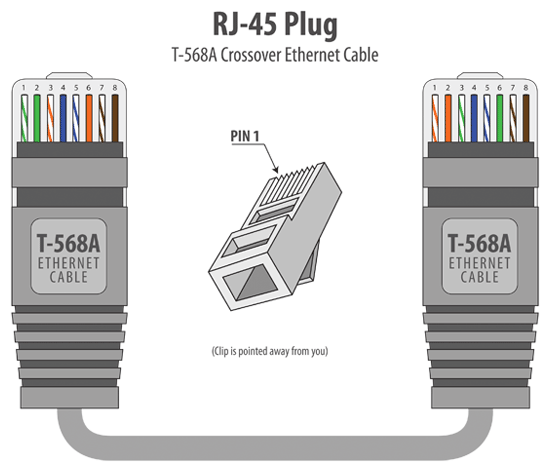
RJ45 Colors and Wiring Guide Diagram TIA / EIA 568 A B
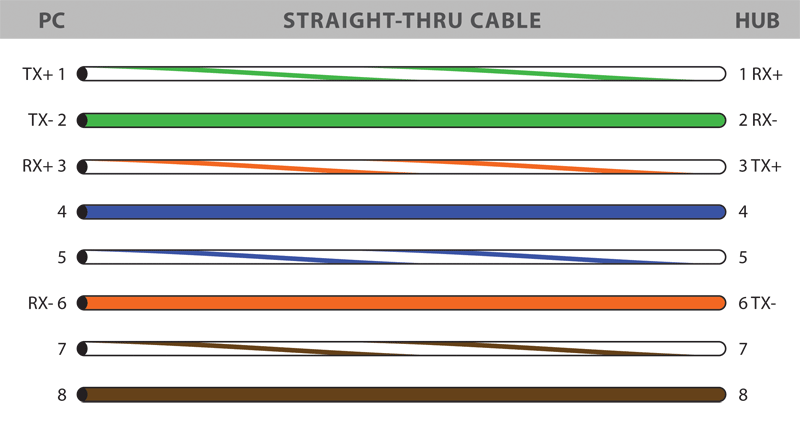
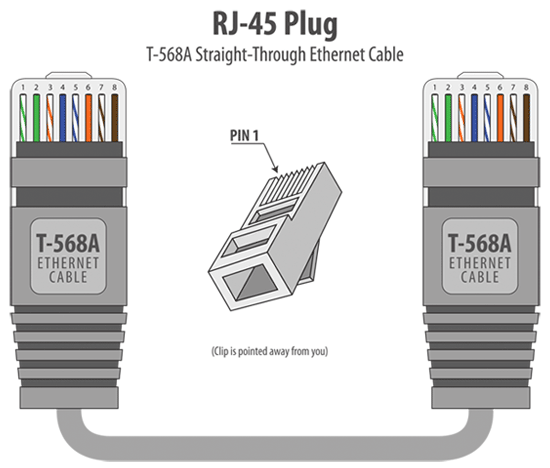
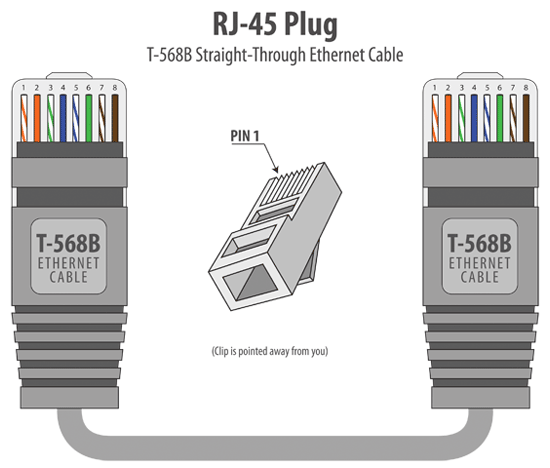
| Ethernet Cable Colors: Color Code Standards The information listed here is to assist Network Administrators in the color coding of Ethernet cables. Please be aware that modifying Ethernet cables improperly may cause loss of network connectivity. Use this information at your own risk, and ensure all connectors and cables are modified in accordance with TIA standards. Basic Theory:By looking at a T-568A UTP Ethernet straight-thru cable and an Ethernet crossover cable with a T-568B end, we see that the TX (transmitter) pins are connected to the corresponding RX (receiver) pins, plus to plus and minus to minus. You can also see that both the blue and brown wire pairs on pins 4, 5, 7, and 8 are not used in either standard. What you may not realize is that, these same pins 4, 5, 7, and 8 are not used or required in 100BASE-TX as well. So why bother using these wires, well for one thing its simply easier to make a connection with all the wires grouped together. Otherwise you'll be spending time trying to fit those tiny little wires into each of the corresponding holes in the RJ-45 connector. T-568A Straight-Through Ethernet Cable Cat5e Cables | Cat6 Cables The T-568A standard is supposed to be used in new network T-568B Straight-Through Ethernet CableCat5e Cables | Cat6 Cablesinstallations. Most off-the-shelf Ethernet cables are still of the T-568B standard; however, it makes absolutely no functional difference in which you choose. Both the T-568A and the T-568B standard Straight-Through cables are used most often as patch cords for your Ethernet connections. If you require a cable to connect two Ethernet devices directly together without a hub or when you connect two hubs together, you will need to use a Crossover cable instead. RJ-45 Crossover Ethernet CableCat5e Crossover Cables | Cat6 Crossover Cables A good way of remembering how to wire a Crossover Ethernet cable is to wire one end using the T-568A standard and the other end using the T-568B standard. Another way of remembering the color coding is to simply switch the Green set of wires in place with the Orange set of wires. Specifically, switch the solid Green (G) with the solid Orange, and switch the green/white with the orange/white. How to Build an Ethernet Cable Instructions:
|      |
Ethernet Cable Tips:
| |
Subscribe to:
Posts (Atom)